
Quick Maintenance & Backup for MS SQL
Connecting to Google Drive
| Database maintenance settings > Copying backups > Connecting to Google Drive |
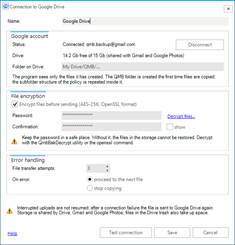
This form includes settings for connecting to Google Drive. It opens when you create a connection of the Google Drive type in the copy destination settings and in Settings > Connections.
Connecting to Google Drive |
Name - any name for the connection.
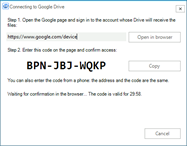
Status - shows the current state of the connection to the Google account. Click Connect…: a window with the address of a Google page and a confirmation code opens.
Confirming access to Google Drive |
Open the page on this computer or on your phone, sign in to the Google account whose Drive will receive the files, enter the code and allow the access. After the confirmation the QMB service tests the connection and shows the account email address and the Drive space.
 |
QMB gets access only to the files on Google Drive that it has uploaded itself; other files are not accessible to it. |
QMB does not store the password of your Google account. Google issues a separate access key. The Disconnect button revokes the issued access in Google and erases the saved key in QMB; to connect again you will have to go through the connection procedure once more.
If Status shows Access is no longer valid, connect again, it means that the access was revoked in the Google account or has expired. Click Connect… and go through the connection again.
Drive - free and total space on the Drive according to the last connection test. The storage is shared by Drive, Gmail and Google Photos. For accounts without a storage limit only the used space is shown.
Folder on Drive - My Drive/QMB. The QMB folder is created in the root of My Drive the first time files are copied and cannot be changed; the policy folder structure is repeated inside: database folders with the FULL, DIFF and LOG subfolders. If the QMB folder is deleted or moved to the trash, the program creates a new one on the next copying and writes a warning to the task log. Google Workspace shared drives are not supported.
Encrypt files before sending (AES-256, OpenSSL format) - the files are encrypted during the transfer and stored on the Drive with the .enc extension; the source files are not changed. Enter a Password of at least 8 characters and repeat it in the Confirmation field.
 |
Keep the encryption password in a safe place. Without it, the files in the storage cannot be restored. Decrypt with the QmbBakDecrypt utility (the Decrypt files… link on the form) or with the openssl command. |
File transfer attempts - how many times to retry the transfer of one file after a failure, from 1 to 10.
On error - what to do when a file could not be transferred: proceed to the next file or stop copying. In both cases the error is written to the task log. If there is not enough space on the Drive for the next file, copying stops completely regardless of this setting.
Test connection - the test connection is made from the computer where the QmbService service is installed, through its Internet access and its proxy. If the connection succeeds, the program shows the email address of the Google account and the free space on the Drive.
Copying is performed by the Backup copying to Google Drive job task, see Settings for Copying Backup Files.
|
Interrupted uploads are not resumed: after a connection failure the file is sent to Google Drive again. Files in the Drive trash also take up space until the trash is emptied. Google limits uploads to 750 GB per day per account. |