
Quick Maintenance & Backup for MS SQL
Connecting to an SFTP Server
| Database maintenance settings > Copying backups > Connecting to an SFTP Server |
This form includes settings for connecting to an SFTP server, that is a server with SSH access: Windows with OpenSSH Server, Linux, NAS devices. It opens when you create a connection of the SFTP type in the copy destination settings and in Settings > Connections.
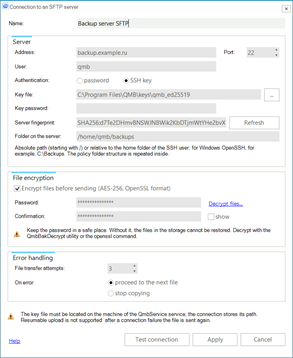
Connecting to an SFTP server |
Name - any name for the connection.
Address and Port - the name or IP address of the server and the SSH port, usually 22.
User - the account on the server.
Authentication - password or SSH key. The caption of the password field changes with the choice: the Password of the account or the Key password (the password protecting the key file; leave it empty if the key has no password).
Key file - the path to the SSH private key file. The file must be located on the QMB service computer; the connection stores only its path. The … button opens a file dialog on this computer, so with a remote service enter the path manually. Keys in the PEM format (for example RSA, "BEGIN RSA PRIVATE KEY") and OpenSSH ed25519 keys are supported. PuTTY keys (.ppk) must be exported to the OpenSSH format first. For modern OpenSSH servers (8.8 and later) use an ed25519 key: such servers reject RSA key signatures by default.
Server fingerprint - the fingerprint of the SSH server key, used on every connection to verify that the program has connected to the same server. It is never entered manually: at the first connection test the service receives the server key, calculates the fingerprint and saves it in the connection (the Save button without a fingerprint runs the connection test first). If the server key has changed, for example after the server was reinstalled, copying stops with the error "the SFTP server key does not match the saved one"; make sure that the change is expected and click Refresh - the old fingerprint is forgotten and a new one is received. Changing the address or the port clears the fingerprint automatically.
Folder on the server - the folder for the files: an absolute path (starting with /), a path relative to the home folder of the SSH user or, for Windows OpenSSH, a path like C:\Backups. An empty value means the home folder. The policy folder structure is repeated inside: database folders with the FULL, DIFF and LOG subfolders.
Encrypt files before sending (AES-256, OpenSSL format) - the files are encrypted during the transfer and stored on the server with the .enc extension; the source files on the computer are not changed. Enter a Password of at least 8 characters and repeat it in the Confirmation field; the show check box reveals the entered password.
 |
Keep the encryption password in a safe place. Without it, the files in the storage cannot be restored. Decrypt with the QmbBakDecrypt utility (the Decrypt files… link on the form) or with the openssl command. |
File transfer attempts - how many times to retry the transfer of one file after a failure, from 1 to 10.
On error - what to do when a file could not be transferred: proceed to the next file or stop copying. In both cases the error is written to the task log.
Test connection - the test connection is made from the computer where the QmbService service is installed: logging in to the server, checking or saving the server fingerprint and reading the file list in the specified folder or in the home folder of the user.
Copying is performed by the Backup copying to FTP/SFTP job task, see Settings for Copying Backup Files.
 |
Resumable upload is not supported: after a connection failure the file is sent again. An existing file with the same name on the server is replaced. If the server has run out of space or the folder is not writable, the server does not acknowledge the write, and after two minutes of waiting an error with this hint is written to the log. |