
Quick Maintenance & Backup for MS SQL
1C:Enterprise Infobase Upload to a DT File
| QMB interface > Tasks menu > Task > 1C:Enterprise Infobase Upload to a DT File |
A task of the 1C:Enterprise infobase upload to a DT file type uploads a 1C:Enterprise infobase to a DT file. The 1C designer is started by the QmbService service on its own machine; before the upload the task can disconnect users from the infobase. Both file and client/server infobases are supported.
The task runs as part of a job or with the Execute Task command of the server list context menu. MS SQL is not involved in the upload, so the task can be included in a job on any MS SQL server. However, it is recommended to place the DT upload task in the jobs that maintain this client/server infobase. This rules out conflicts between maintenance operations and the upload.
The upload is performed by the QmbService service, so its machine needs:
 |
The ras administration server does not have to run on the 1C server: by default QMB starts its own ras on the service machine for the time of the upload. |
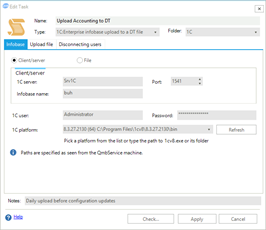
Infobase tab |
Client/server / File — the infobase type. For a client/server infobase, specify the 1C server (name or IP address), the cluster manager Port (1541 by default) and the Infobase name in the cluster. For a file infobase, specify the Infobase folder that contains the 1Cv8.1CD file, local or network.
1C user, Password — a user with administrative rights under which the designer is opened to perform the upload. If no user is specified, the designer logs on under the service account (operating system authentication).
1C platform — the path to the folder or to 1cv8.exe of the required 1C platform version. The list shows the platforms installed on the service machine; Refresh requests them from the service again. You can also type the path manually.
Paths on all tabs are specified as seen from the QmbService machine.
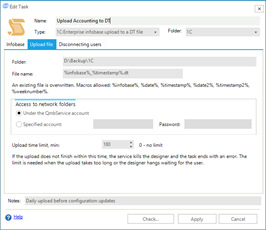
Upload file tab |
Folder — the folder for the DT file, local or network. If the folder does not exist, the service creates it.
File name — the DT file name, %infobase%_%timestamp%.dt by default. An existing file with the same name is overwritten. The file is written under a temporary name and gets its final name only after a successful upload. Macros allowed:
| Macro | Replaced with |
| %infobase% | the infobase name: the name in the cluster for a client/server infobase, the folder name for a file infobase |
| %date% | the date as YYYY-MM-DD |
| %timestamp% | the date and time as YYYY-MM-DD_HHMMSS |
| %date2% | the date as DD-MM-YYYY |
| %timestamp2% | the date and time as DD-MM-YYYY_HHMMSS |
| %weeknumber% | the week number in the year |
Access to network folders — the account under which the service accesses the network paths of the upload folder and the file infobase folder.
Upload time limit, min — if the upload does not finish within this time, the service forcibly closes the designer and the task ends with an error. 180 minutes by default, 0 means no limit. The limit protects against a designer that hangs waiting for user actions.
To upload a DT file, the designer needs exclusive access to the infobase. The Disconnect users before the upload flag lets you configure forced disconnection of users. The fields of the tab depend on the infobase type, client/server or file.
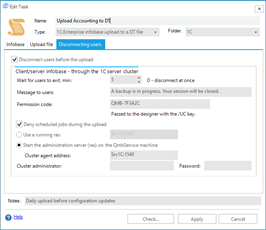
Disconnecting users of a client/server infobase |
Users are disconnected by the 1C server cluster:
Wait for users to exit, min — how long to wait for users to finish their work themselves; 0 means disconnect at once.
Message to users — the text users see when the infobase is locked and when their session is terminated.
Permission code — the code with which the designer enters the locked infobase. A random code is filled in when the task is created. You can use the same code to enter the infobase manually if the lock remains for some reason.
Deny scheduled jobs during the upload — scheduled jobs are denied for the time of the upload; after the upload the previous mode is restored.
Start the administration server (ras) on the QmbService machine — the service starts its own ras on a free port and stops it after the upload. The Cluster agent address is filled in from the server and port on the Infobase tab: the agent port is one less than the manager port.
Use a running ras — the address of a running ras as server:port, for example one registered on the 1C server (the standard port is 1545).
Cluster administrator, Password — fill them in if cluster administrators are defined.
|
If the QmbService service stops during the upload, the previous lock state is restored when the service starts next time. In addition, the lock is set for a limited period and expires by itself. |
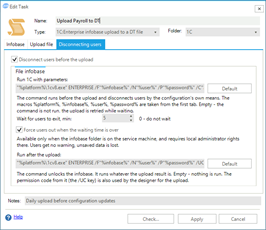
Disconnecting users of a file infobase |
A file infobase offers two ways to disconnect users:
Users are disconnected as follows:
The commands can use macros; their values are taken from the Infobase tab:
| Macro | Replaced with |
| %platform% | the folder of the selected 1C platform |
| %infobase% | the infobase folder |
| %user% | the 1C user |
| %password% | the 1C user password; it is hidden in the log |
The Default buttons fill in the commands for standard configurations:
"%platform%\1cv8.exe" ENTERPRISE /F"%infobase%" /N"%user%" /P"%password%" /C"ЗавершитьРаботуПользователей""%platform%\1cv8.exe" ENTERPRISE /F"%infobase%" /N"%user%" /P"%password%" /UCКодРазрешения /C"РазрешитьРаботуПользователей" |
Different versions of the Standard Subsystems Library (SSL) may accept different parameters for setting the user lock mode. Make sure the configuration accepts the specified parameters. It is strongly recommended to test on a copy of the infobase first. |
|
Standard configurations need about 2 minutes to close user sessions the soft way. If the Run 1C with parameters field is empty, no command is run. While waiting, the task periodically tries to upload the infobase. |
The designer also uses the permission code from the unlock command (the /UC key) to enter the locked infobase, so it must match the code with which the disconnection command locks the infobase. In standard configurations, unless the code is set explicitly, it is КодРазрешения.
Forcing users out is available only if the infobase folder is on the service machine, and requires local administrator rights there.
 |
When users are forced out, they get no warning, and unsaved data is lost. |
Check... — the task parameters are checked on the QmbService side: the 1C platform, the ras and rac utilities, access to the cluster and the infobase, infobase administrator rights, current sessions, processes holding the file infobase files, file infobase commands with macros substituted, the upload folder and free disk space.
The designer output during the upload is written to the maintenance log and shown in the execution window.